This guide covers the version 0.2.4 preview supplied by Fix Networks Ltd. It describes currently implemented features. Signed-in compatibility with live provider accounts remains unverified; review the limitations before using account-changing actions.
Install and update
The current release is an unpacked preview. A Chrome Web Store listing is not yet confirmed. Use only the owner's authorised build; do not install a repackaged copy from an unknown source.
- Use Chrome 120 or newer. Open
chrome://extensionsand enable Developer mode. - Choose Load unpacked and select the
distfolder containingmanifest.json, or extract an authorised ZIP and choose its extracted folder. Do not select the source repository root. - Keep the chosen directory in place. Click the toolbar extension icon to open the manager; pin it through Chrome's Extensions menu if convenient.
- Reload already-open ChatGPT tabs to activate the on-page launcher.
To update, back up your library, update files in the same installation directory, then click Reload on the existing extension and refresh the manager/AI tabs. Uninstalling to update can erase local data. A future store-installed extension may have a different ID/storage area from an unpacked installation; export first, and use the extension's full-backup restore if transferring. Restored chats are imported records, so load live history again before remote actions.
Connect and load conversations
Open a signed-in ChatGPT tab. In the manager select Connect ChatGPT, choose that tab and confirm. A personal account uses the default workspace; for a work/team workspace enter its correct workspace account ID. Automatic discovery of every workspace is not implemented. Check the account/workspace displayed above the library.
Choose Load full history for available conversation metadata and Load archived history if needed. Loading titles does not load every message. Select chats and choose Index content to obtain available message bodies for content search and full exports. With no selection, bulk indexing uses the filtered remote results. Indexing one row through its menu always affects only that chat.
Progress shows loaded/processed counts. Cancel loading or use queue pause/stop controls when needed. Keep the manager open: current queues do not continue reliably after dashboard closure. A request already sent may still complete. Account identity is checked before provider calls; a saved connection is restored only after revalidation. No developer API key or separate paid API service is needed, but your existing provider account, permissions, limits and network connection apply.
Import instead of connecting
Use Import archive for official ChatGPT conversations.json or a ZIP containing it, supported Claude message archives, or the extension's normalised conversation JSON. The import limit is 200 MB per file. Import reads available content; it cannot restore messages absent from the archive. Imported/captured chats are local records and cannot directly delete/archive/move provider-side chats. Full Fixnetworks application backups belong in Settings → Restore backup, not Import archive.
Understand the library
The landing page shows conversations, Project information, platform, original start and update times, status, stars/protection, and selection controls. Original timestamps use available source values and show time/timezone; missing values are not replaced with import/indexing time. Counts reflect records stored on this device, not necessarily every inaccessible or unloaded remote chat.
Project badges distinguish Not in a Project, a known Project name, and Not checked yet / Check unavailable. Unknown does not mean outside a Project. Project membership is reconciled against accessible provider lists; archived or inaccessible records can remain uncertain. Refresh Projects or Check Project membership to retry. A custom GPT identifier is not automatically treated as a native Project.
Click a chat title to open the original conversation in a new tab. For a locally known Project member, the manager also switches to its scoped Project context and highlights the chat. This shows available local members, not a new tab for every member. Back to library restores the preceding filters. Preview opens indexed/imported content locally; unindexed chats show a content notice rather than invented messages.
Search, filters and saved views
The search box searches available titles and indexed message content. Unindexed message bodies cannot match. Search snippets highlight matching text. Local preview jumps to the first matching message where available; exact navigation/highlighting in the original provider page is not yet implemented.
Combine membership, individual Project, archive status, platform, account/workspace and sorting filters. Advanced search adds original creation-date bounds, older-than-days, message role, star state, folder/tag, required terms and excluded terms. Required/excluded term controls offer All/Any matching. Exact phrase uses literal phrase matching; Titles only restricts search to titles. These are structured filters, not a natural-language AI search service.
Use Save view to name the current filter combination, then select it from Saved views. A saved view stores criteria rather than a frozen collection. Reset filters to broaden the results. Filters and local libraries do not change remote provider records by themselves.
Selection, pages and All chats
Check individual rows, use the header checkbox for the current page, or choose Select all filtered across every matching page. Shift-click selects a range on the current page. Clear selection removes checkmarks without deleting chats. Selections persist across page/filter changes, so review the selected count before a bulk action.
Chats per page supports 25, 50, 100, 200, 500 and All chats. First/previous/numbered/next/last and Go to page navigate paged results. All chats shows every matching local result on one page; it does not fetch otherwise unavailable remote chats. Page size is saved. Selecting all filtered is independent of the displayed page size.
Three-dot chat actions
Click ⋯ beside a title. Its menu acts on that chat only, even if other rows are checked. Bulk toolbar buttons act on the selected chats. Escape dismisses the menu; arrows/Home/End navigate enabled actions. The menu remains open through ordinary focus/data refreshes and updates availability when checks finish.
| Action | Effect |
|---|---|
| Open original / Preview locally | Open provider chat or locally available content. |
| View Project chats | Switch to the chat's known scoped Project context. |
| Rename Project / Change Project colour | Native verified rename or local Project colour controls, when a Project is known. |
| Move to Project / Move to another Project | Review the native destination and eligible single chat; submit once and verify the result. |
| Create Project | Prepare an empty native Project independently of moving this chat. |
| Create Project and move | Verify creation first, then offer a separate move review. |
| Add/move to folder / Edit tags | Change local organisation, not native Project membership. |
| Star / Protect | Toggle local retention protections. These are independent controls. |
| Index / Refresh content | Fetch this remote chat's available content using the matching connection. |
| Export | Open format/packaging choices for this chat. |
| Archive / Unarchive / Delete | Start the existing guarded provider-action review. |
Disabled items show why: a running operation, a different/disconnected account, unsupported/imported source, star or lock protection, for example. Wait for the operation or reconnect the correct account rather than treating a blocked action as success. Native chat rename and removing a chat from a Project are not shipped verified operations.
Projects and local colours
The Projects page includes discovered empty Projects as well as those with locally stored chats. Cards show counts, archived/indexed totals, last chat activity, scan coverage and available native links. Refresh uses the connected account. A partial/failed scan is not a claim the Project is complete.
On the conversation landing page, click a Project badge to open Project options. The Project context header has the same button. Rename, local colour save/reset, available chat navigation/export and a validated native link are accessible there; you do not need to leave the library merely to change a colour. Colour is scoped to stable Project ID plus account/workspace, survives renaming/reload, and does not change ChatGPT's native design.
Create or rename
Enter a name and choose Continue in ChatGPT. The extension prepares the site's native form; you confirm there. Return to Projects → Check result. Only a fresh catalogue result establishes success. Cancelling the native form does not create/rename anything. English visible website controls, the correct Project sidebar row for rename, and suitable permissions are currently required.
Move into a Project
Select the row/menu or bulk Move to Project, choose the destination, review included/excluded chats and acknowledge the change. Native Project instructions/context can affect that chat's future behaviour. Stars/locks, local/imported sources and account boundaries remain enforced. Extension folder memberships are kept.
For create-and-move, a verified new Project is followed by a separate move review; creating it does not move the chat automatically. If a submitted move cannot be verified, the journal records uncertainty. Refresh and inspect the provider state before retrying; no blind automatic move retry is made.
Archive, delete and protection
Archive/unarchive changes provider status for eligible live ChatGPT chats. Project/unknown-membership protection is on by default. Operation-specific inclusion checkboxes allow deliberate review of those categories; starred and individually protected chats remain excluded. Imported/captured or wrong-account chats cannot be changed remotely. Folder-wide inherited protection is planned, not currently implemented.
Deletion freezes the reviewed eligible selection, requires the word DELETE, and waits ten seconds before enabling confirmation. This can be permanent. There is no promised remote undo. Export and inspect full content first; metadata CSV and partial captures are not complete backups. The current export-before-delete flow checks generation/writing where available, not every ordinary OS download's eventual integrity.
Operation history records results, errors and uncertain outcomes. Review failed items for a fresh eligible retry. Pause/resume and stop-after-current are available for active dashboard queues; interrupted destructive work is not automatically restarted. Remote deletion can retain local saved content marked as deleted and a journal until you remove/reset local storage. Local reset does not delete provider-held chats.
Export, PDFs and backups
Choose a row Export or Export selected. Supported formats:
- PDF: locally generated, bundled font, page breaks, chat/role/date headings and source/Project information.
- Markdown / TXT: available message text and metadata, suitable for further editing.
- JSON: available normalised conversation records.
- CSV: metadata only, not message content or a complete backup.
Choose a combined file, one-file-per-chat ZIP, or streaming ZIP directly to disk where Chrome's file picker is available. ZIP can preserve local folder paths. Folder Export tree includes its descendants. Full-content formats require indexing; a local archive/capture is only as complete as its source. Some images are private pointers rather than downloadable assets.
Preview exports and optionally redact literal terms. This is phrase replacement, not guaranteed personal-information detection. Rich PDF tables/code/math/images and complete Arabic/CJK/emoji coverage are not yet faithful; inspect important files. Do not assume downloaded files are encrypted or private when saved in shared/cloud-synchronised folders.
Settings → Download full backup exports the whole local application state. Restore backup replaces the current library after review, preserves supported organisation/Project colours and makes restored chats imported records. It does not restore remote deleted chats. Download a current backup before restoring. Downloaded files are separate from the live browser library.
Folders, tags, prompts and page tools
Folders and smart tags
Create local folders/subfolders, choose their parent and initial colour, star them and change sort order. Edit changes name/parent; drag a folder onto another to reparent it. Cycles are rejected. Add to folder preserves other memberships; Move replaces them. Deleting a folder tree removes organisation and keeps the conversations. Full folder-colour editing and inherited folder protection are not yet complete.
Smart tags match local literal keywords against available titles/indexed text. Add/remove rules, apply rules to chats, or use a row's Edit tags for manual tags. A rule is not semantic classification or multilingual morphology. Rule-colour metadata exists; a complete tag-colour presentation editor is not shipped.
Prompt library and workflows
Save prompts with title, category, text and favourites. Variables use {{topic}}-style placeholders and are filled before copy/insertion. Prompt usage counts reflect implemented uses; they are not provider quota measurements. Categories are flat, not a full prompt folder hierarchy.
Separate chain steps with a line containing ---STEP---. The page asks before sending the sequence, waits for response-start/completion signals, and offers stop-after-current. Provider DOM changes or ambiguous response state stop the chain rather than safely guaranteeing completion. Review every step and the target account; a confirmed chain sends prompts to that provider.
On supported AI pages, use // to find saved prompts, @@ to insert locally indexed context excerpts, and .. for chains. Arrows select suggestions; Tab/Enter inserts; Escape closes the picker. Inserting context into another provider's editor discloses it to that site's page and sending it transmits it to that provider. Review sensitive context first.
Page launcher and shortcuts
The Fixnetworks launcher provides manager/capture, top/bottom, previous/next question, collapse, sidebar checkboxes, bookmarks and browser read-aloud. Capture includes available DOM messages, not guaranteed hidden history. Use Manage selected after sidebar selection, then transfer it into the matching connected/loaded library through Use sidebar selection.
Ctrl+Shift+F / Command+Shift+F opens the manager if Chrome has assigned the shortcut. Within supported pages, Ctrl/Command+K opens the manager and Ctrl/Command+Shift+E collapses messages. Within the dashboard, Ctrl/Command+K opens keyword-based tool search. Browser/OS shortcut conflicts can be managed through Chrome's extension-shortcut settings.
Bookmarks, media and insights
Bookmarks stores available message references, labels, notes and colours locally. Page bookmarks capture available chat content into the local inbox; open/refresh the manager to review it. Use local preview to bookmark individual indexed messages. Search/filter your bookmark library and jump to available saved messages.
Media & artifacts lists available image URLs and fenced code from indexed messages. Requested image ZIP downloads can fail because of permissions, CORS or private asset pointers; open the original when necessary. Code artifact export is fenced-code extraction, not a complete native Claude Artifact Vault. The extension does not fetch gallery images automatically merely to display thumbnails.
Usage & insights reports locally available indexed-message timestamps, counts, a 30-day chart, historical streaks and a downloadable SVG recap. Counts depend on coverage. Token/context numbers are character-based estimates, not actual provider spending, quota/reset time or continuous session tracking. Duplicate review compares exact indexed text; semantic similarity is planned. Browser speech reads the last available answer using offered system/browser voices, possibly online; it does not create an MP3.
Settings, privacy and troubleshooting
Settings cover dark/light/system theme, accent, font/chat width, language metadata, RTL, local topic rules, available timestamps/counts, sound and cross-platform inclusion. The interface remains English; choosing language metadata does not translate all controls. Completion sound is optional and browser audio rules can block it.
Optional Chrome Sync manually transfers folders, prompts/chains, rules, saved views and settings using your Chrome account. It excludes the conversation collection, bookmarks, credentials and current Project catalogue/colours, but prompts/search criteria can contain sensitive content. It is not an encrypted chat backup or automatic mirror. Review what you upload. There is no dedicated delete-synced-organisation button yet.
Enable other AI sites requests Claude, Gemini, Grok and X access together. Current support there is page tools/capture/import/local organisation; full remote history/deletion is not implemented. Refresh those tabs after permission changes. Revoke permissions through Chrome when no longer wanted.
Clear local library resets the main state/settings/connection reference and rewrites the page-tool cache. It does not purge every auxiliary inbox/selection/collapse key in the current release, delete downloaded files, erase Google Sync copies or delete provider-side chats. Removing the extension affects extension-local storage; review other browser/device/cloud copies separately. No developer server can recover a lost local-only library.
For connection failures, check the intended signed-in tab/workspace, reload the tab, reconnect and inspect Diagnostics. Session expiry, rate limits, denied permissions, absent English controls and provider changes can block features. Do not repeatedly retry an uncertain write. Diagnostics/operation reports are downloaded locally; inspect and redact them before choosing to send support material. Never share session cookies/tokens or a full browser profile.
Example screens
These are actual extension screens populated only with fictional imported demo data. They do not show a real provider account or establish live remote compatibility.
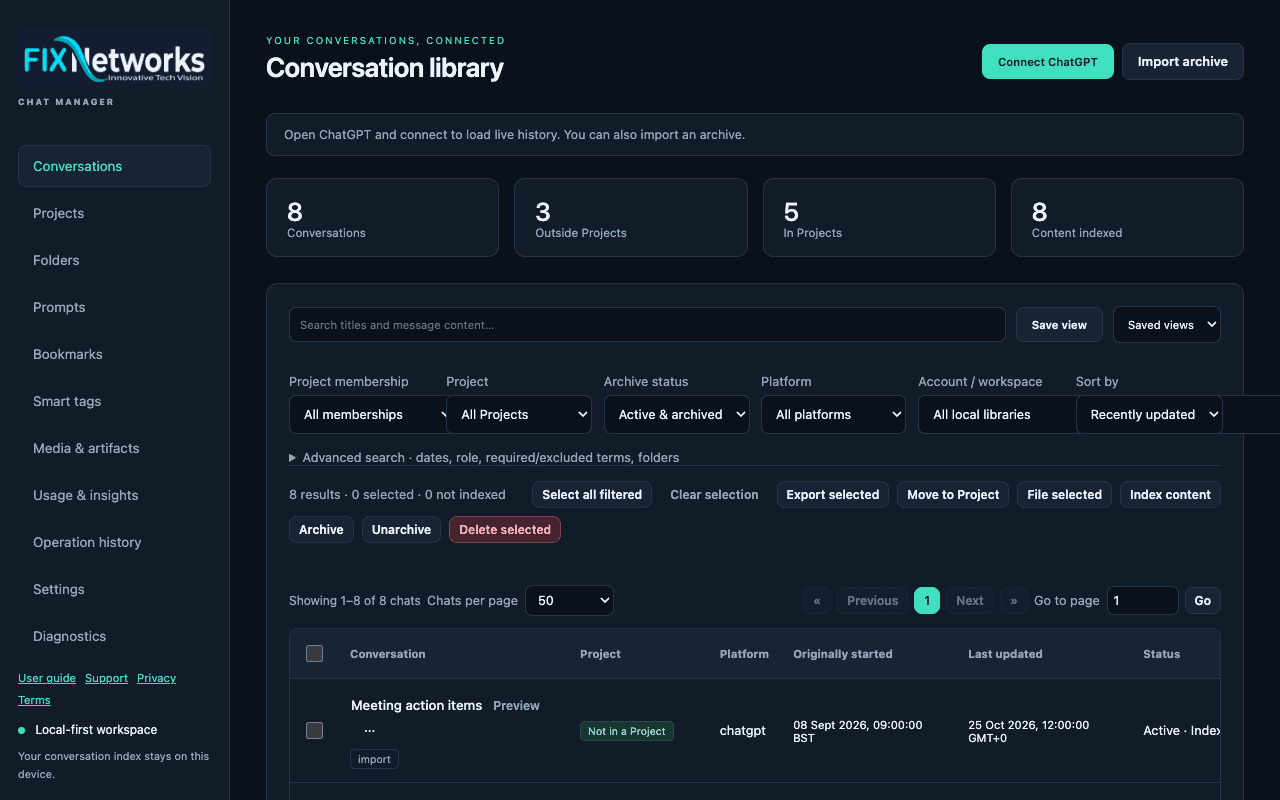
The conversation landing page groups search, filters, selection and per-chat actions.
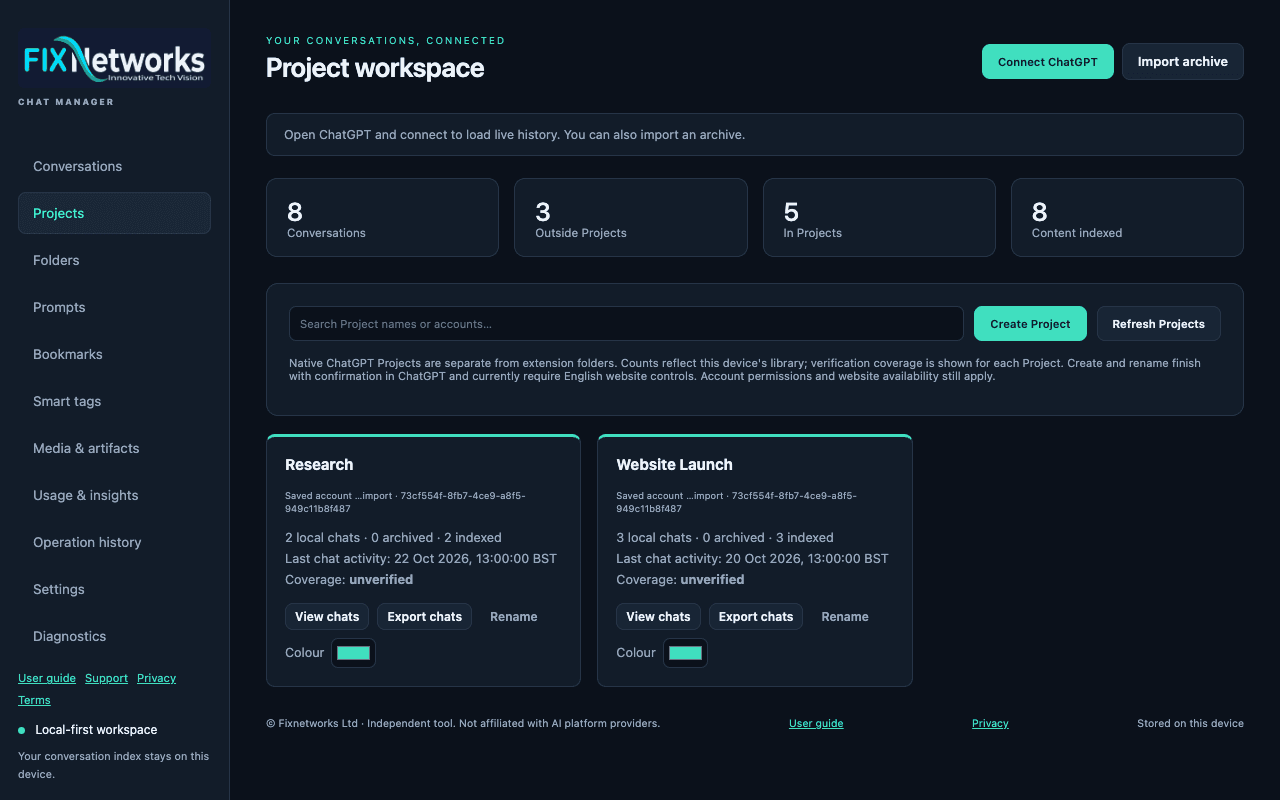
Project counts describe the locally available library and retain coverage labels.
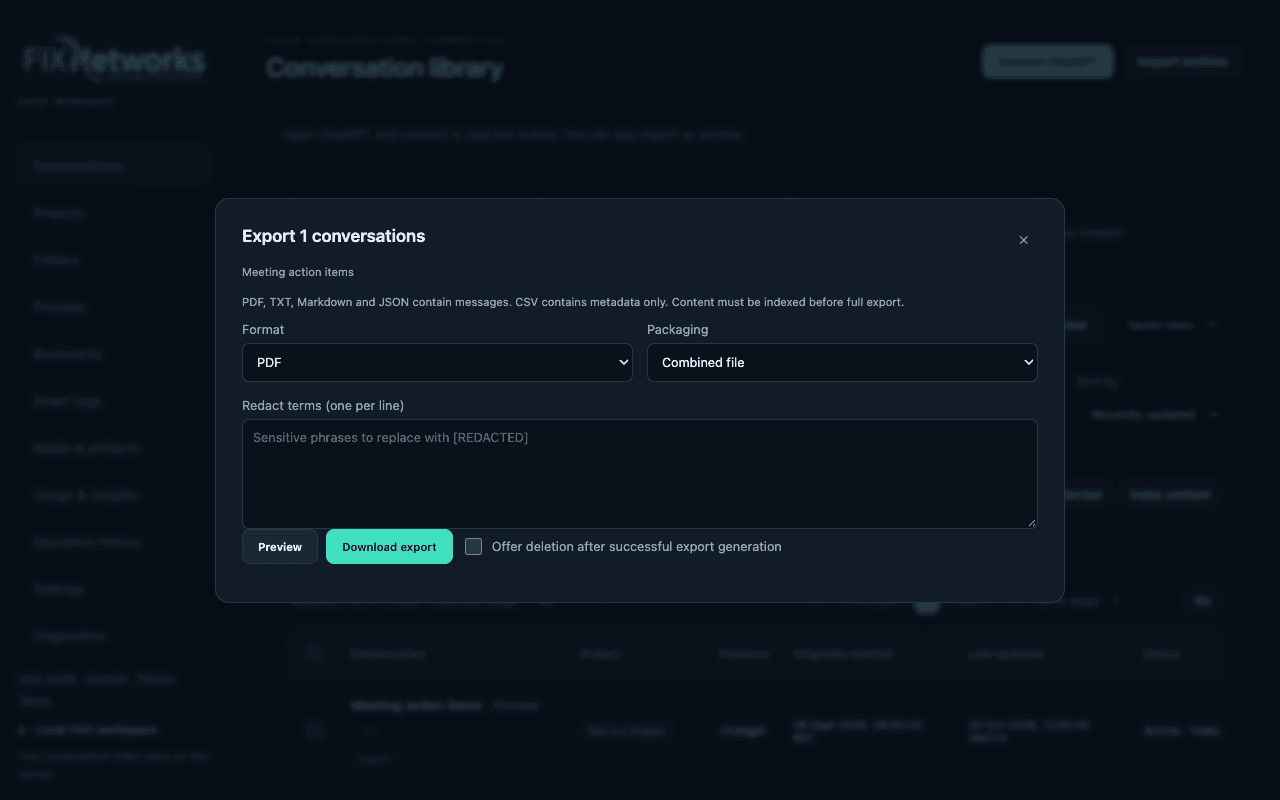
Choose format and packaging, preview/redact text, and inspect the saved export before relying on it.